How to launch CharPad / SpritePad Pro on a modern Mac
CharPad Pro and SpritePad Pro are two fun little programs that let you create artwork for the Commodore 64. They are Windows apps, but with a little effort you can make them work on a Mac/Linux using CrossOver.
CrossOver 25.1
CharPad Pro 3.80
SpritePad Pro 3.80
If you didn’t have it, get CharPad Pro and SpritePad Pro for just $20.00, after that get CrossOver — it costs $74 but you can try out the full version for two weeks.
Once you have CrossOver installed and the apps unzipped, launch it. Don’t do anything in the main window. Instead, go to the app menu and select Bottle — New Bottle…:

Name the bottle, make sure Windows 10 64-bit is selected. Hit Create:

In a short while you will have your bottle created. Now select Open C: Drive from the menu on the right:
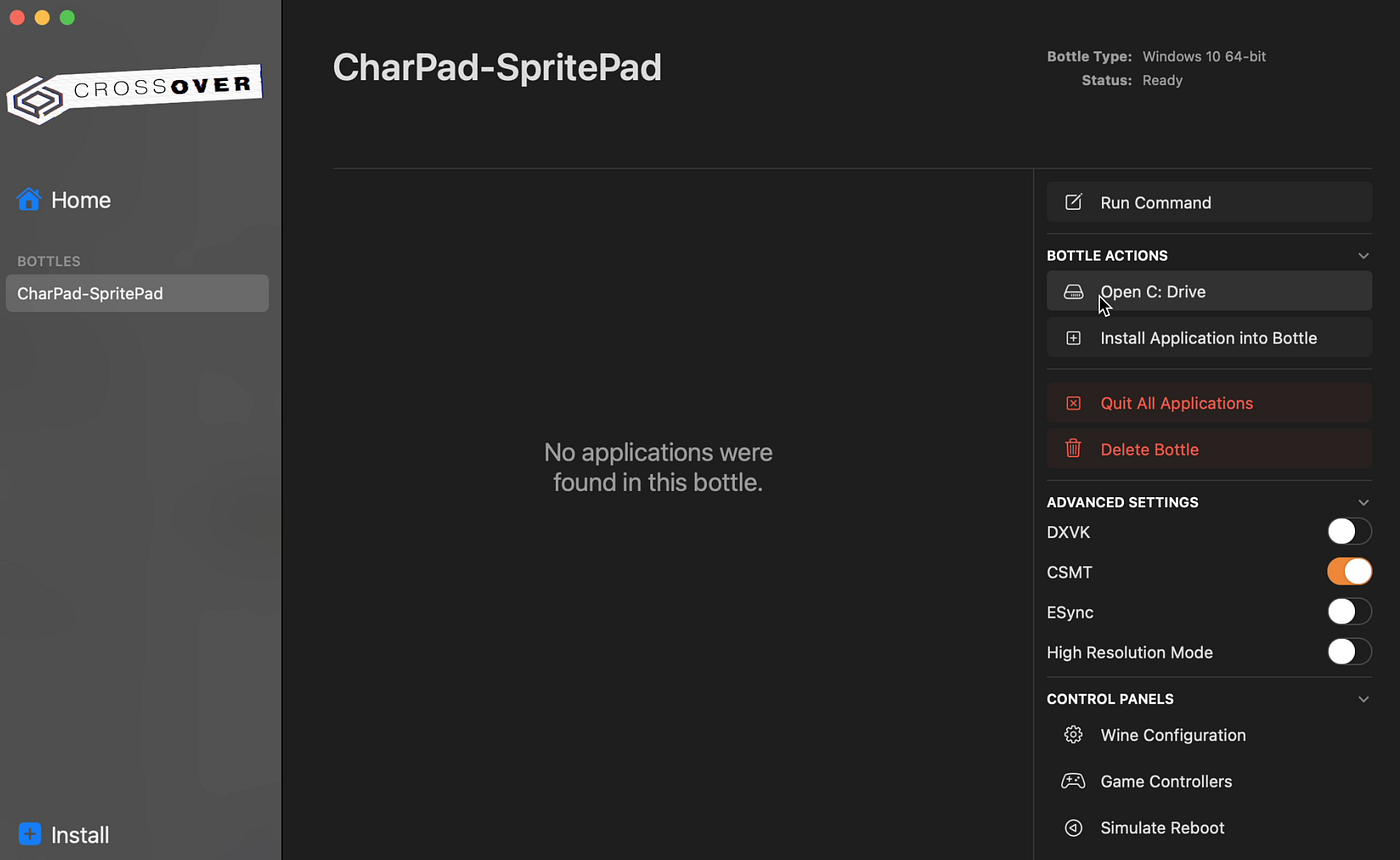
In the window open the Program Files folder and move CharPad’s and SpritePad’s unzipped folders into it:
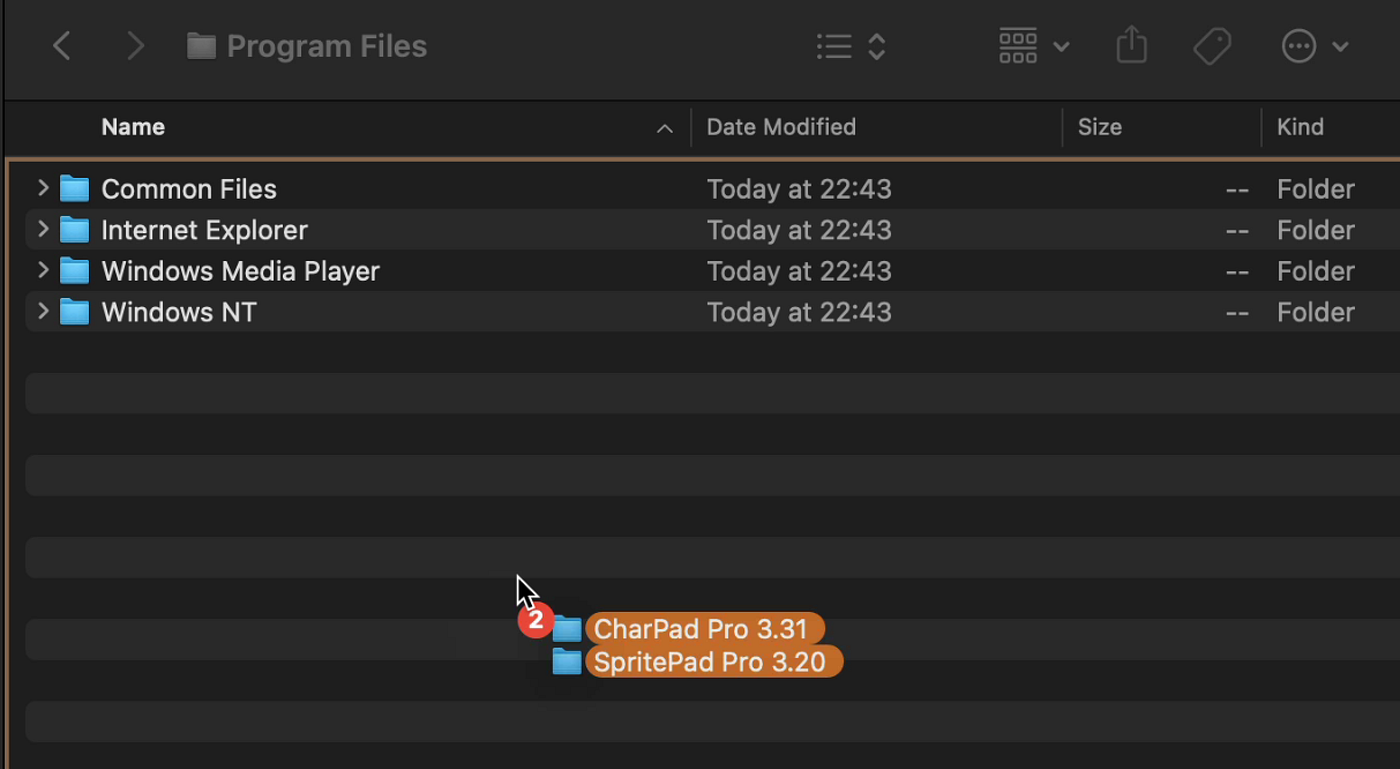
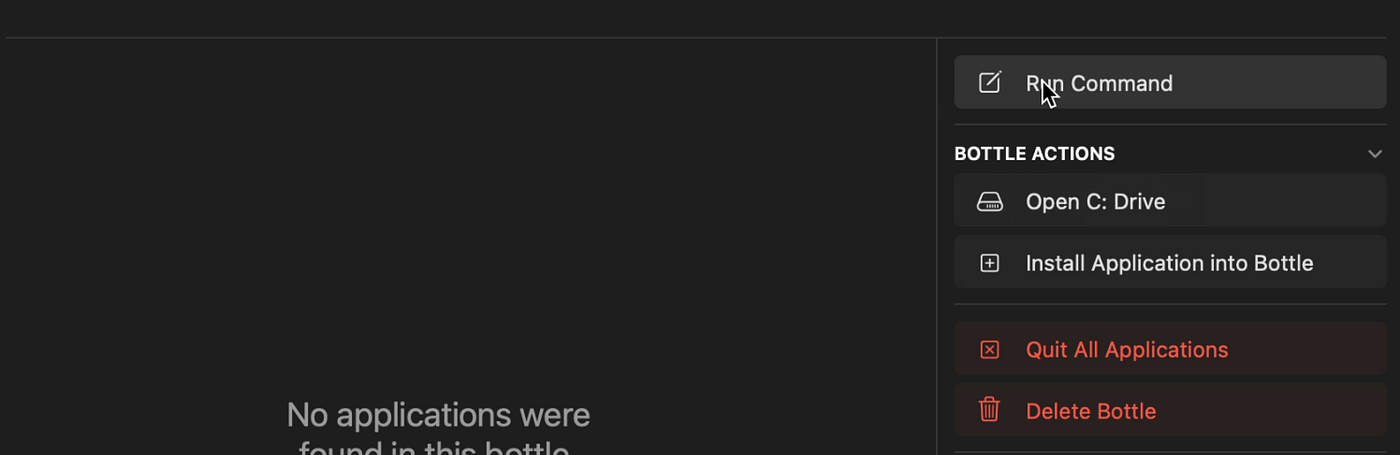
You can close this Finder window now and go back to the CrossOver window. Select Run Command from the right side menu:
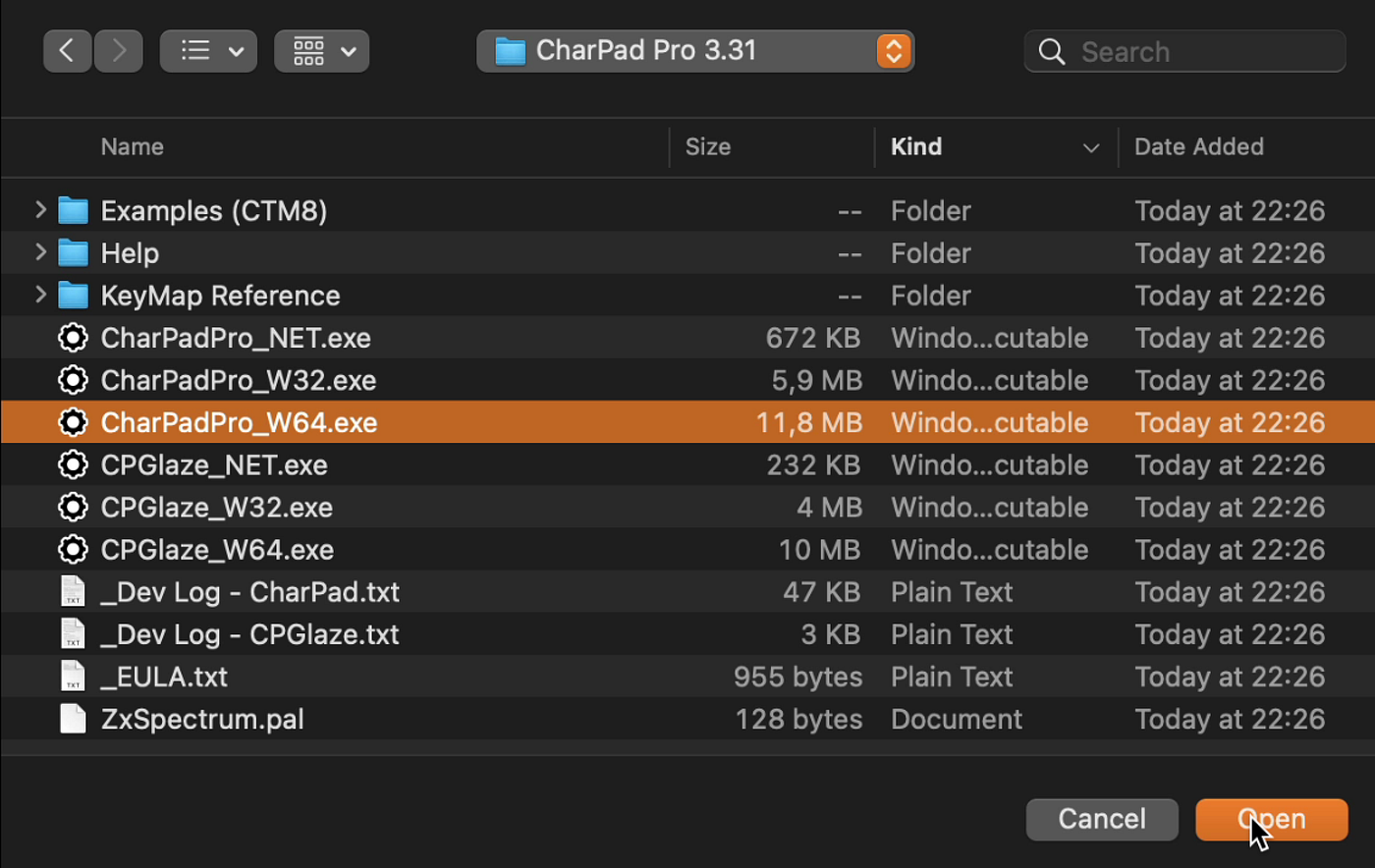
Locate CharPadPro_W64.exe from the corresponding folder and hit Open:
In the appearing window press Save Command as a Launcher
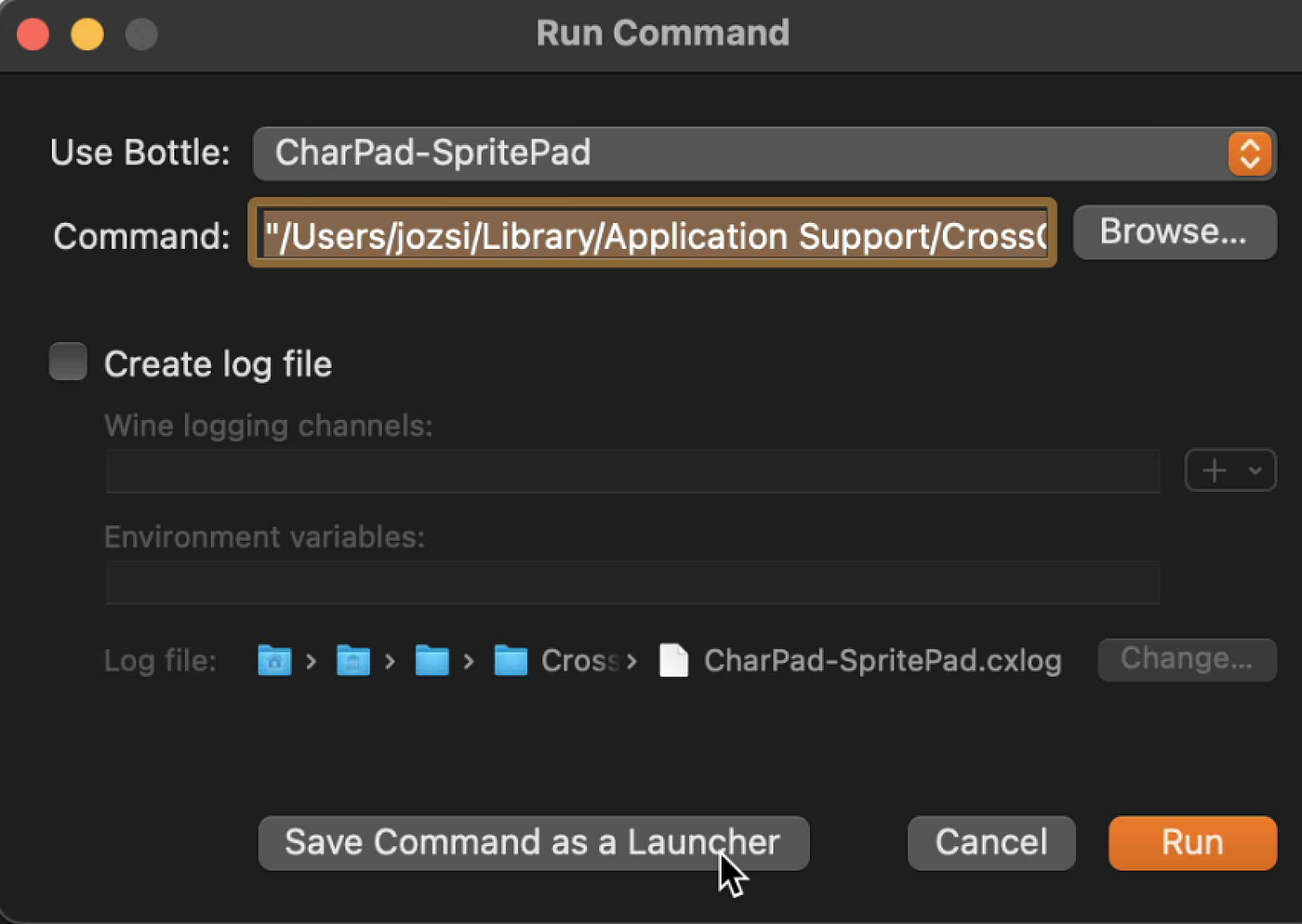
Seemingly nothing will happen first, but it creates a launcher icon after a while. Hit Browse… one more time and locate SpritePadPro_320_W64.exe, then save that as a launcher as well. You can then close this window.
Both apps should be displayed inside your bottle with their own icon:
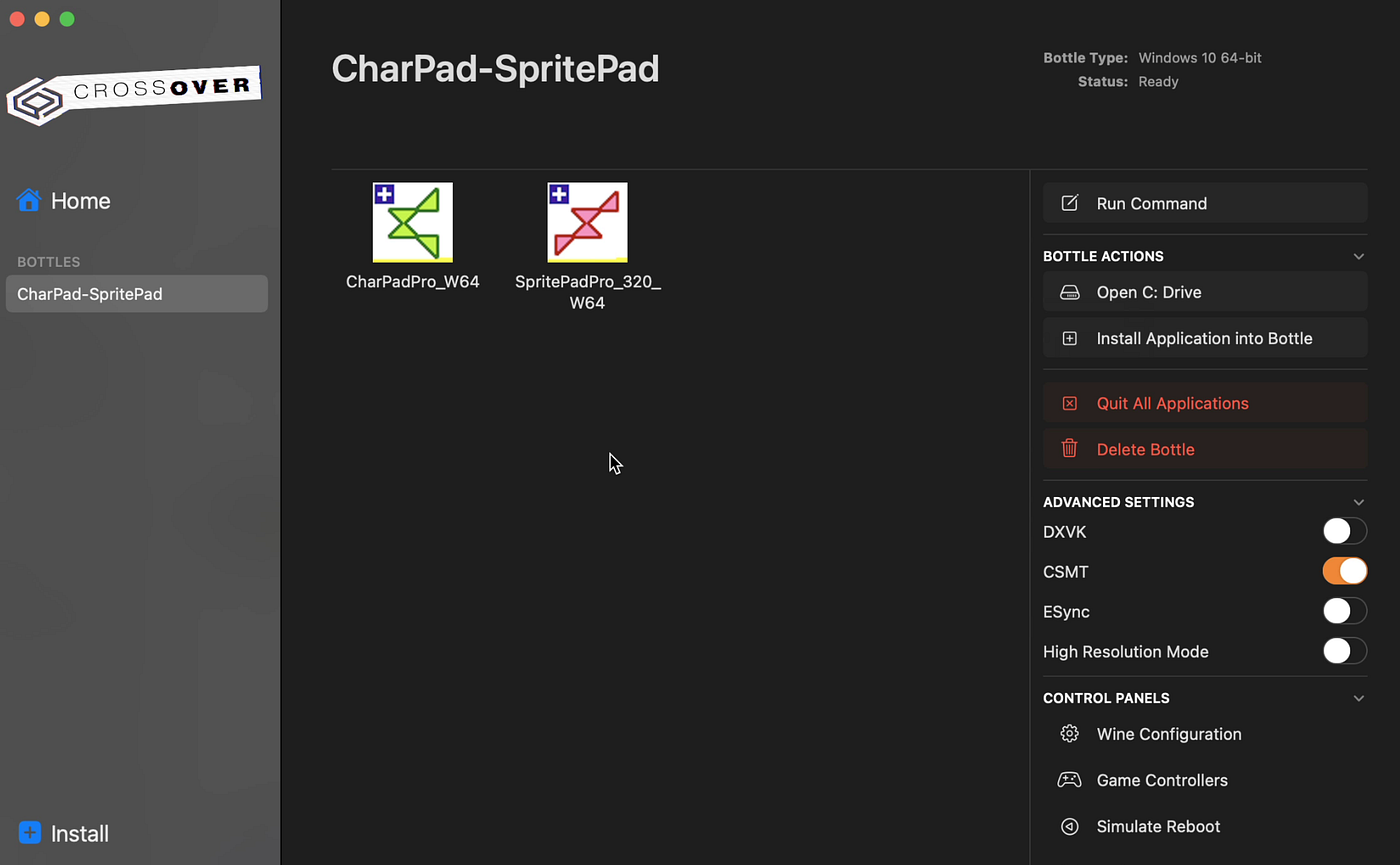
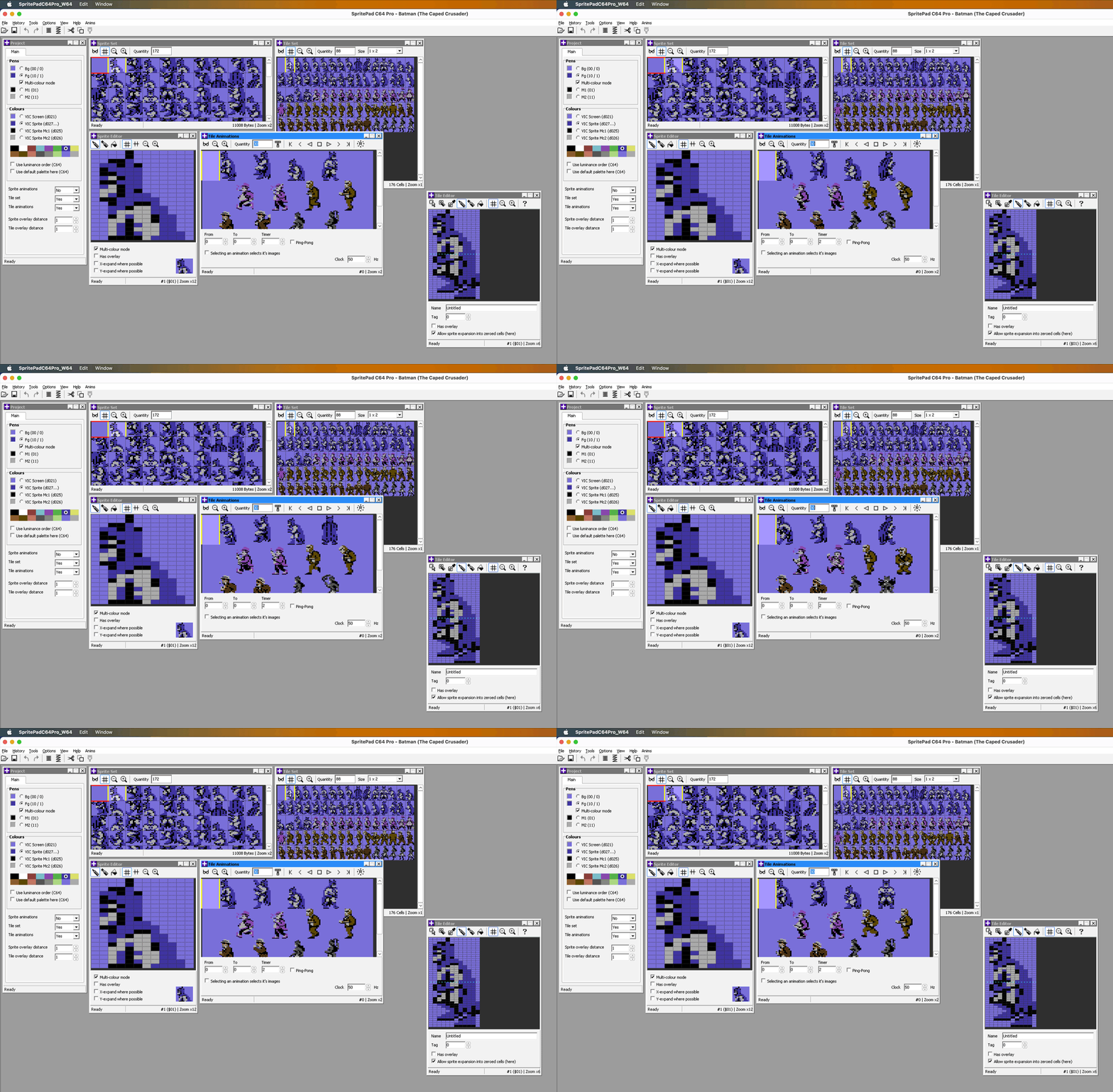
Just double click on them and apps will launch! That’s it! Enjoy and make some great stuff for the Commodore 64! :-)

Many thanks to Niklas Bichinger for the original help.